How it works
From your first ingredient scan to your daily skincare routine – see how it works in seven simple steps.
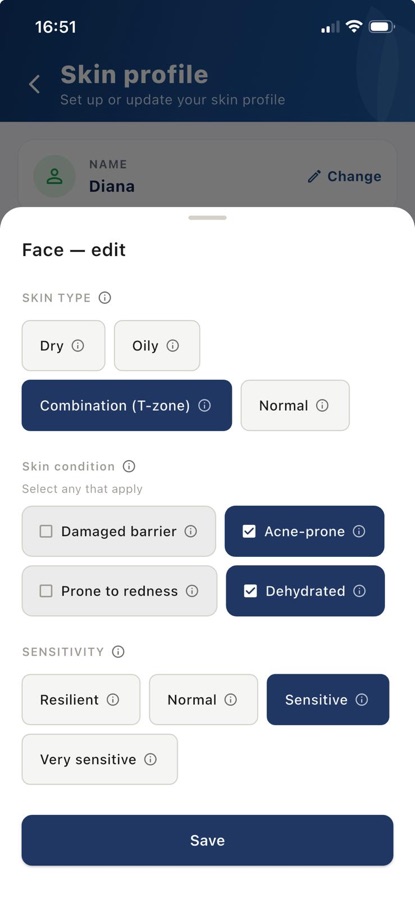
1. Create your skin profile
Choose your skin type, sensitivity and the skin conditions that apply to you. You can also mark ingredients you prefer to avoid.
Barrier Code takes your chosen skin profile into account when assessing a cosmetic formula.
With PRO you can create separate profiles for other body zones – neck and décolletage, hands, legs and body, and scalp.
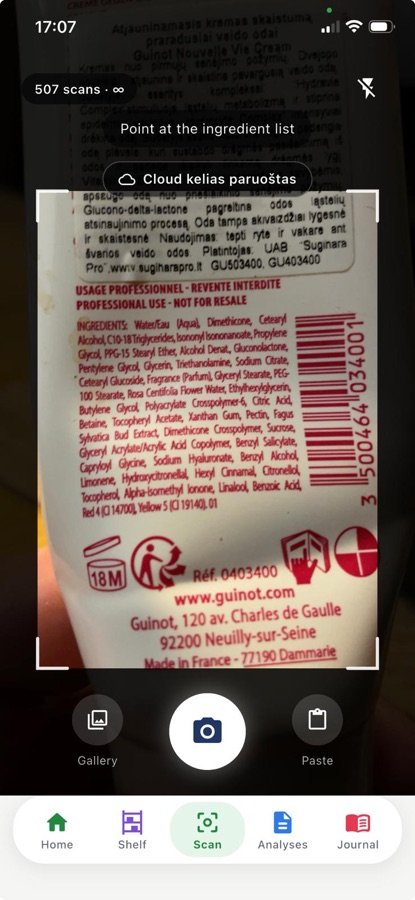
2. Scan the ingredient list
Take a photo of the ingredient list on the cosmetic packaging. You can also pick a photo from your gallery or paste the ingredient list.
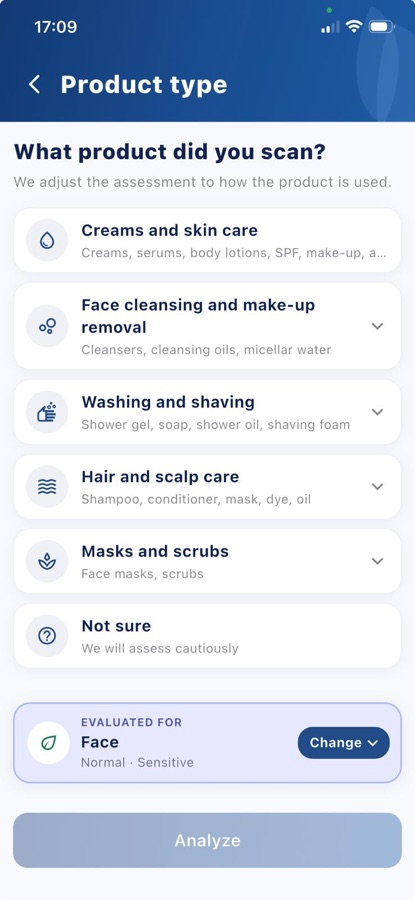
Check the scanned text, correct it if needed, choose the product type and start the analysis. If you don’t know the product type, you can choose “Don’t know”.
Before the analysis, check which body zone and skin profile are selected.
Tip: photograph the whole ingredient list – from the first ingredient to the last.
3. Review the analysis result
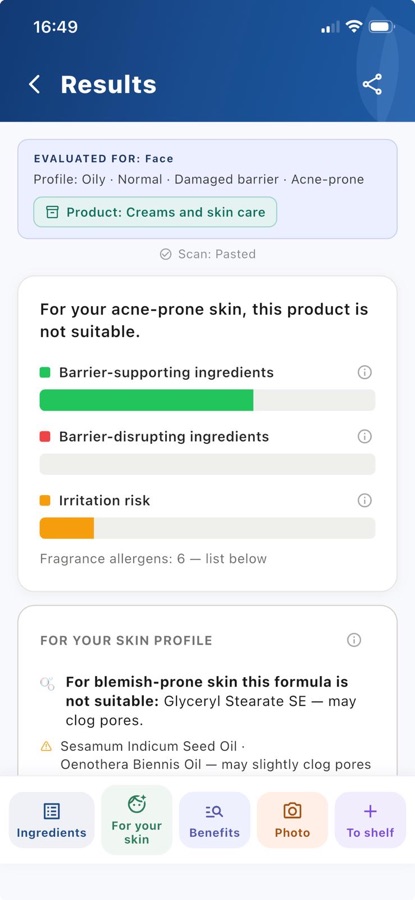
You’ll see an assessment of the cosmetic formula for your skin profile and three bars: barrier-supporting ingredients, barrier-disrupting ingredients and irritation risk.
Look through the full ingredient list, explanations of individual ingredients and the notes that matter for your skin profile.
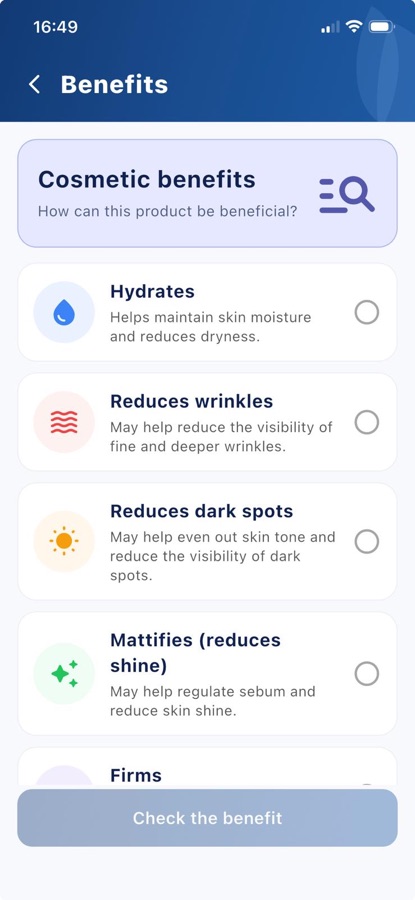
In “Benefits” you can check whether the ingredient list gives grounds for a chosen cosmetic benefit – for example, hydration or mattifying.
You can also add a photo of the front of the packaging so you can recognise it more easily later.
4. Save the product on your Shelf
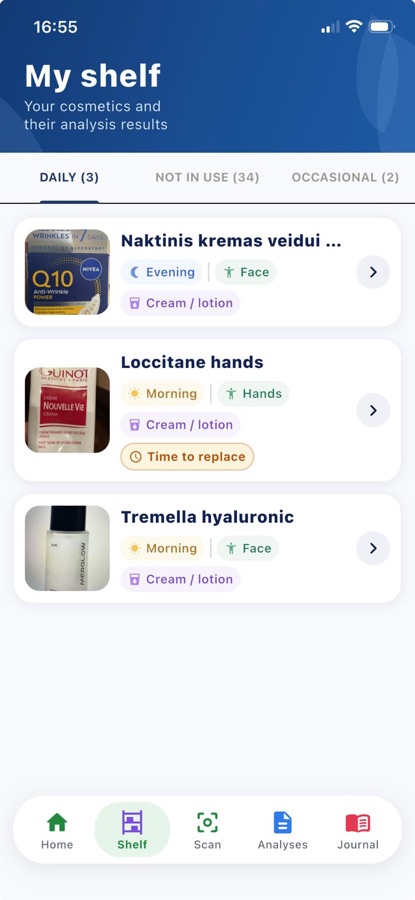
You can add a chosen cosmetic product to your Shelf.
Set when and on which body zone you use it. Add the opening or expiry information – the app will remind you when the expiry is approaching.
Products you schedule for use appear in your Daily routine.
Each product card includes “My review”, where you can share your experience with others.
5. Plan your Daily routine
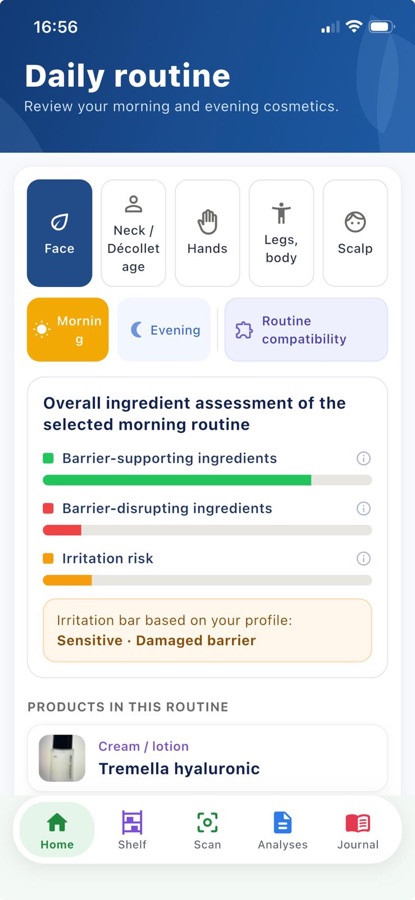
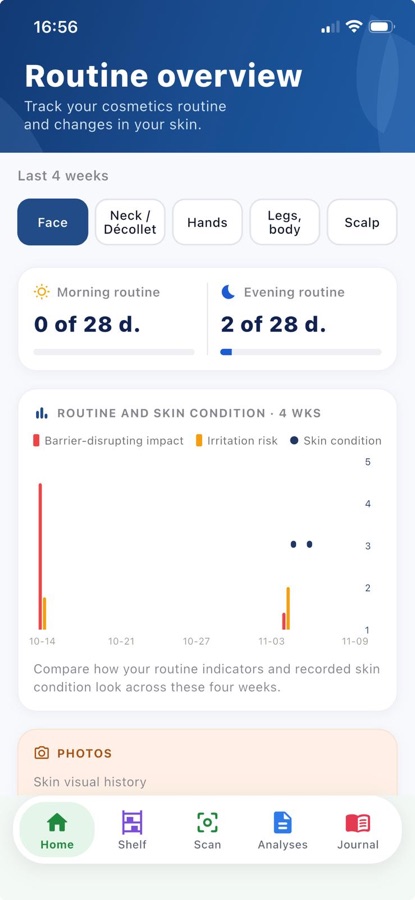
See which cosmetic products you’ve planned to use in the morning and evening. When you mark your Daily routine as done, it goes into the Routine overview.
Get reminders about products you don’t use every day and look through the compatibility notes for the products in your routine.
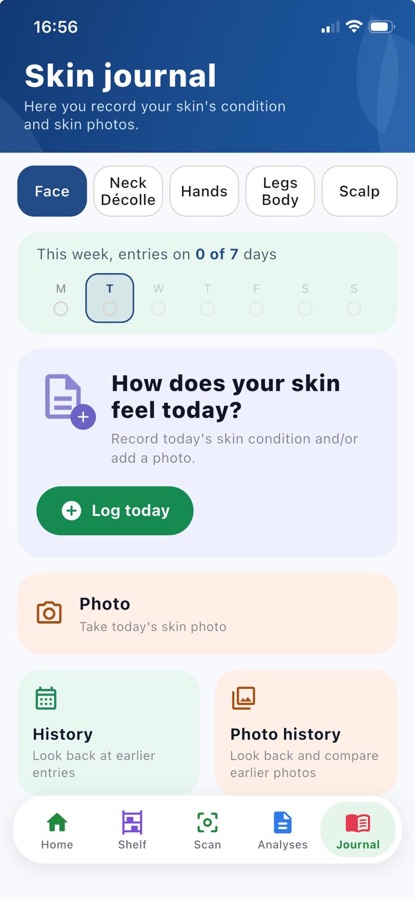
6. Track your skin in the Journal
In the Journal, record how your skin feels and add notes and photos.
In “Routine overview”, look through your skin-feel entries, the products you used and how your photos change.
Prepare a PDF report you can share with a cosmetologist or dermatologist.
7. Discover other people’s experiences
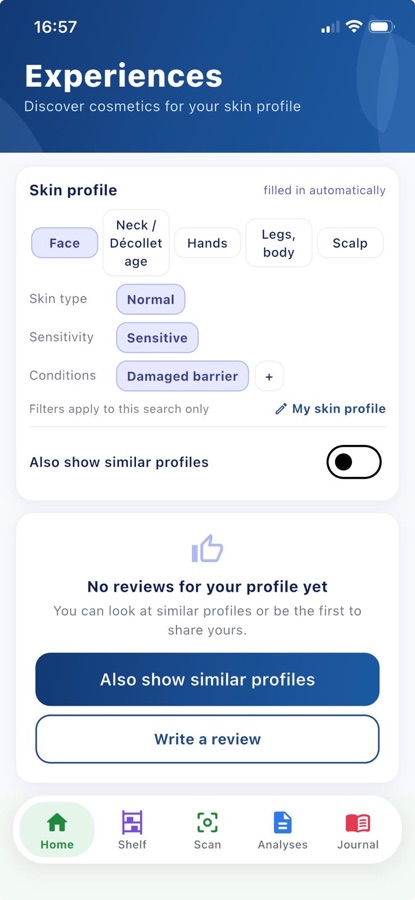
Read reviews from other users about cosmetics they’ve tried.
In “Experiences” you can search reviews by skin profile. Other people’s experiences are not personal cosmetics recommendations.
In more detail
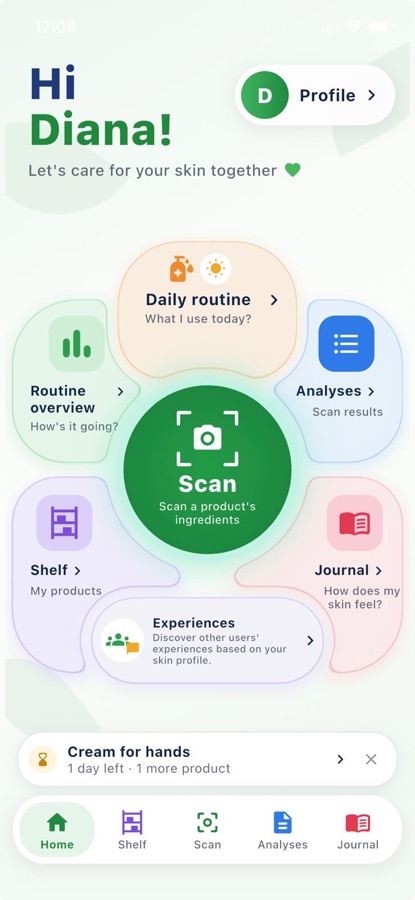
Home screen
From the app’s main screen you can reach scanning, Shelf, Daily routine, Journal, Analyses and Experiences. Important reminders about planned products and their approaching expiry are also shown here.
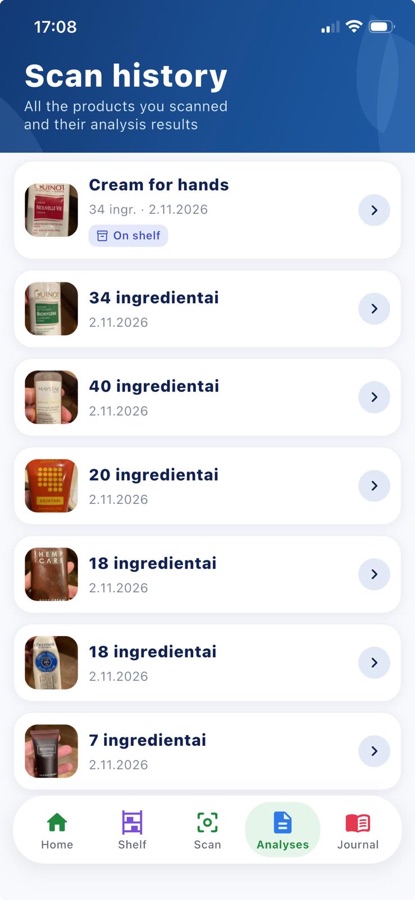
Where do I find earlier analyses?
In “Analyses” you’ll find the history of your earlier scans. Choose an entry to see the product’s result again.
What if I chose the wrong product type?
For a product you’ve just scanned, go back to the “Product type” screen, choose the right group and tap “Analyze” again. For a product that is already on your Shelf, change the type on its card with the “Change type” button.
How do I share an analysis result?
On the results screen you can create a PDF with the product analysis, preview it and send it with the button in the top right corner . The PDF is created only on your phone.
What does the warning about an avoided ingredient mean?
It means that the scanned ingredient list contains an ingredient you marked as one to avoid in your skin profile. The app highlights it separately in the result.
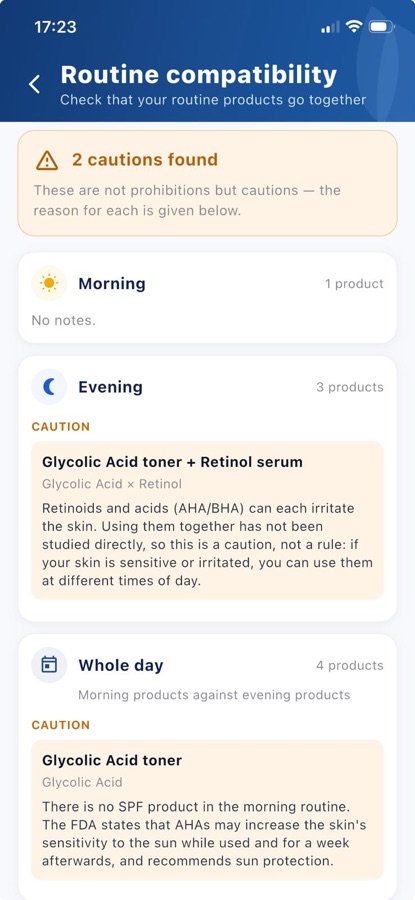
How does the routine compatibility check work?
The app gives notes on combinations of today’s routine products that may call for caution. These are informational notes, not an automatic ban on using the products. The check doesn’t change the assessments of individual products.
How do expiry reminders work?
On the Shelf you can enter a product’s opening date, the period of use after opening and/or the expiry date. The app shows the approaching expiry and reminders.
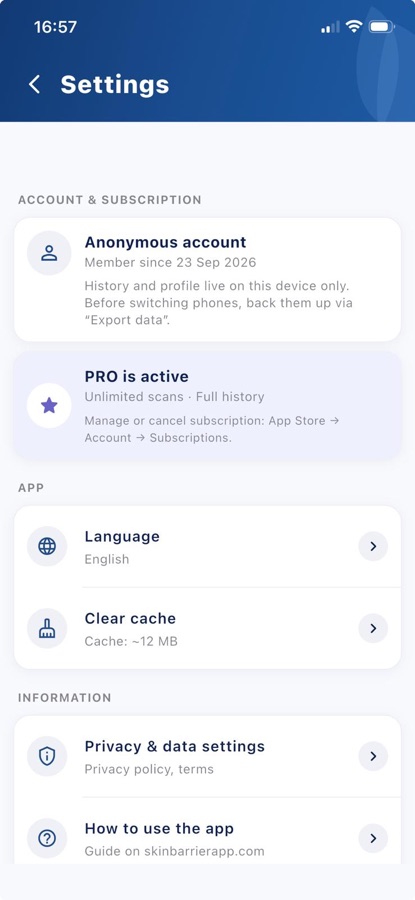
Where do I find settings and data transfer?
In Settings you can change the app language and find privacy information. Here you can also export your data to a file, import it on a new phone and delete your account.